Switch sources if a download is slow. All links track the latest stable installer.
2.1.1 · MIT licensed · Installer and portable ZIP
Download v1.0.0 ↓v2.1.1 is the current release. The previous version remains available.
Rewritten in C++ since v2.0.0, with ongoing work to reduce memory overhead and improve responsiveness. Try the latest release!
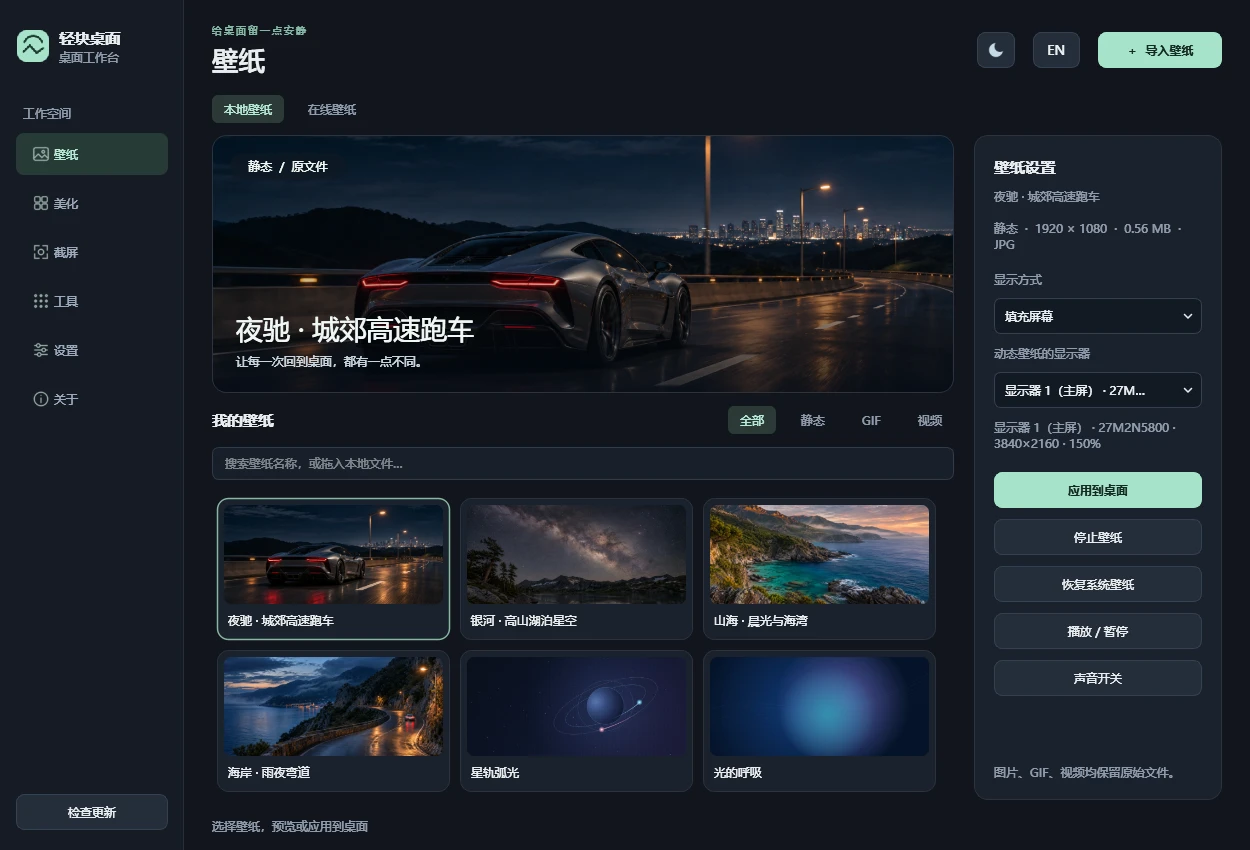
Actual v2.0.0 interface · bundled wallpapers
v2.1.1
Organizer and taskbar fixes
Organizer icons are rendered at their display size. Organizer actions open first in the context menu. Restoring a search result now closes the shelf, and desktop notes are excluded from taskbar hide decisions.
Full-quality wallpaper copies
English and Simplified Chinese
Local data
INCLUDED WALLPAPERS
Four scenes. A different state of mind.
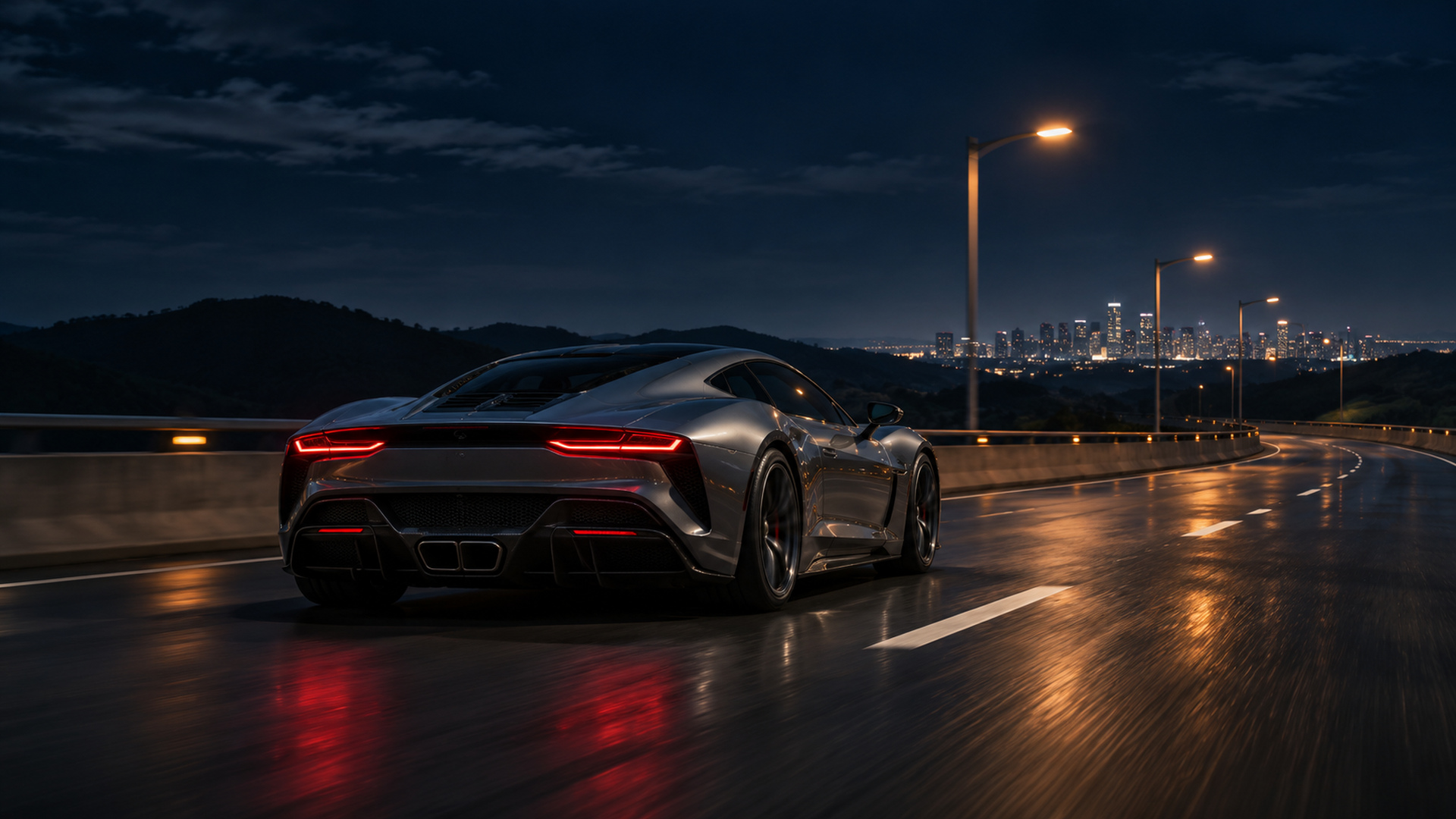
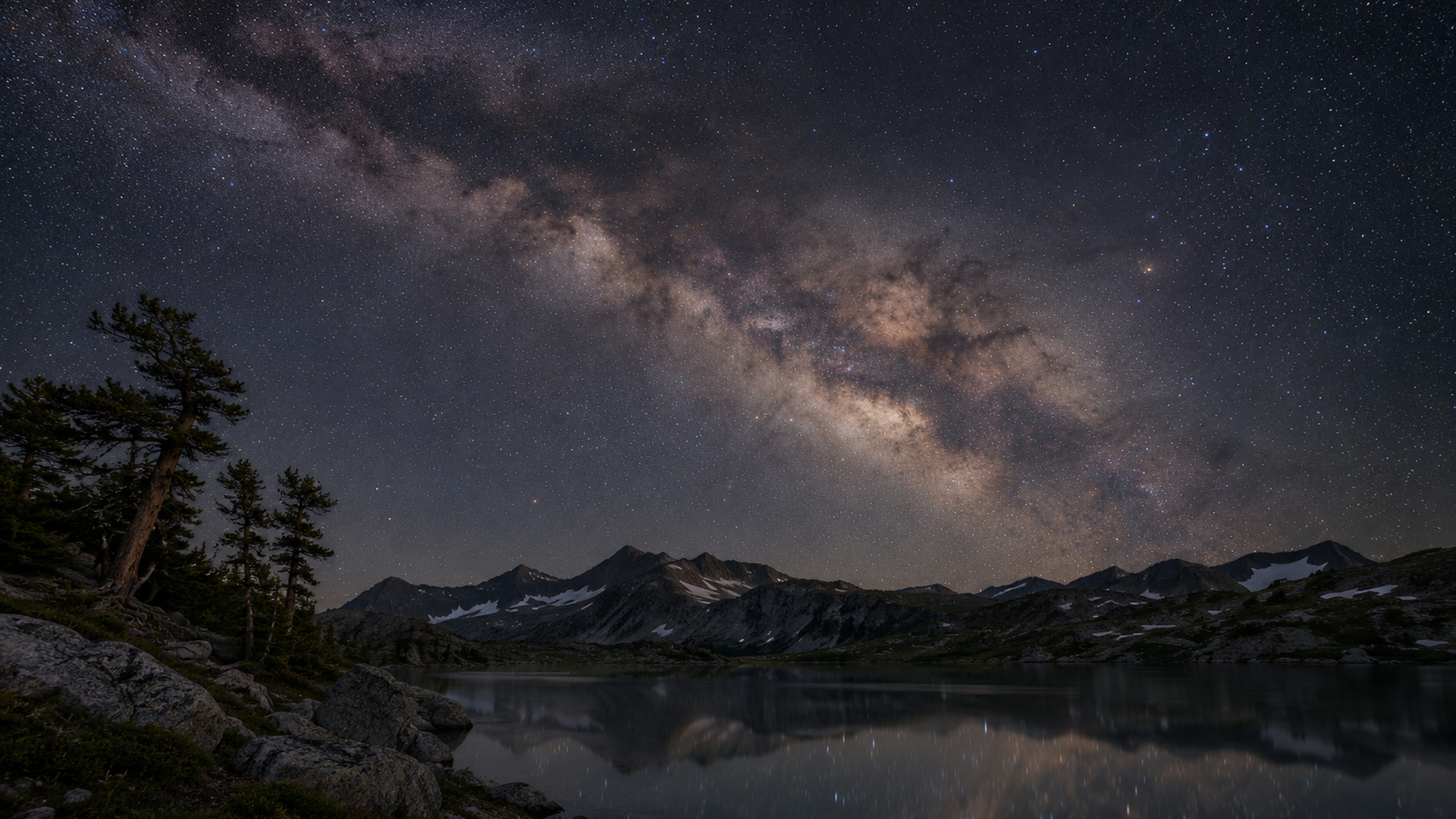
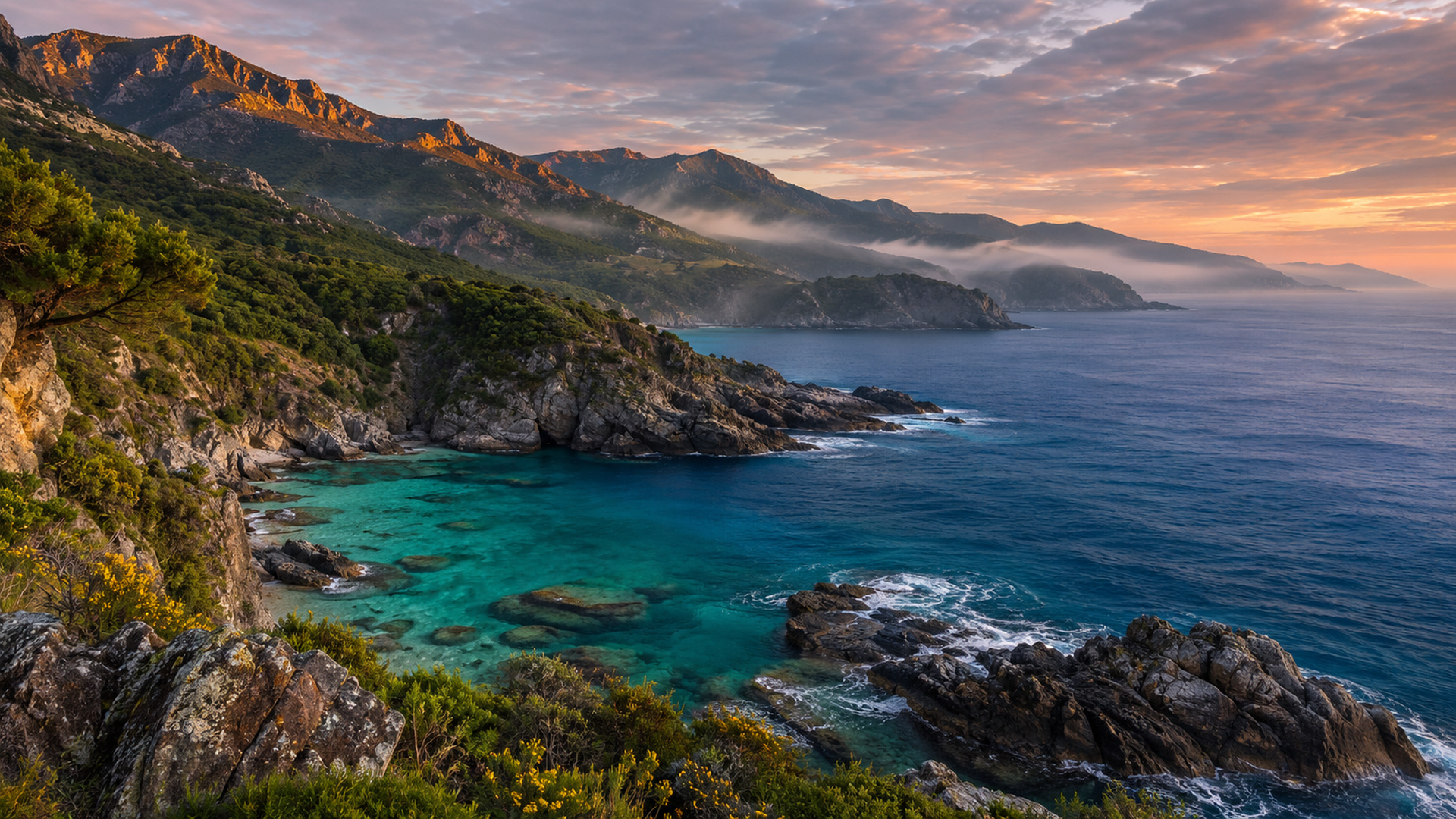
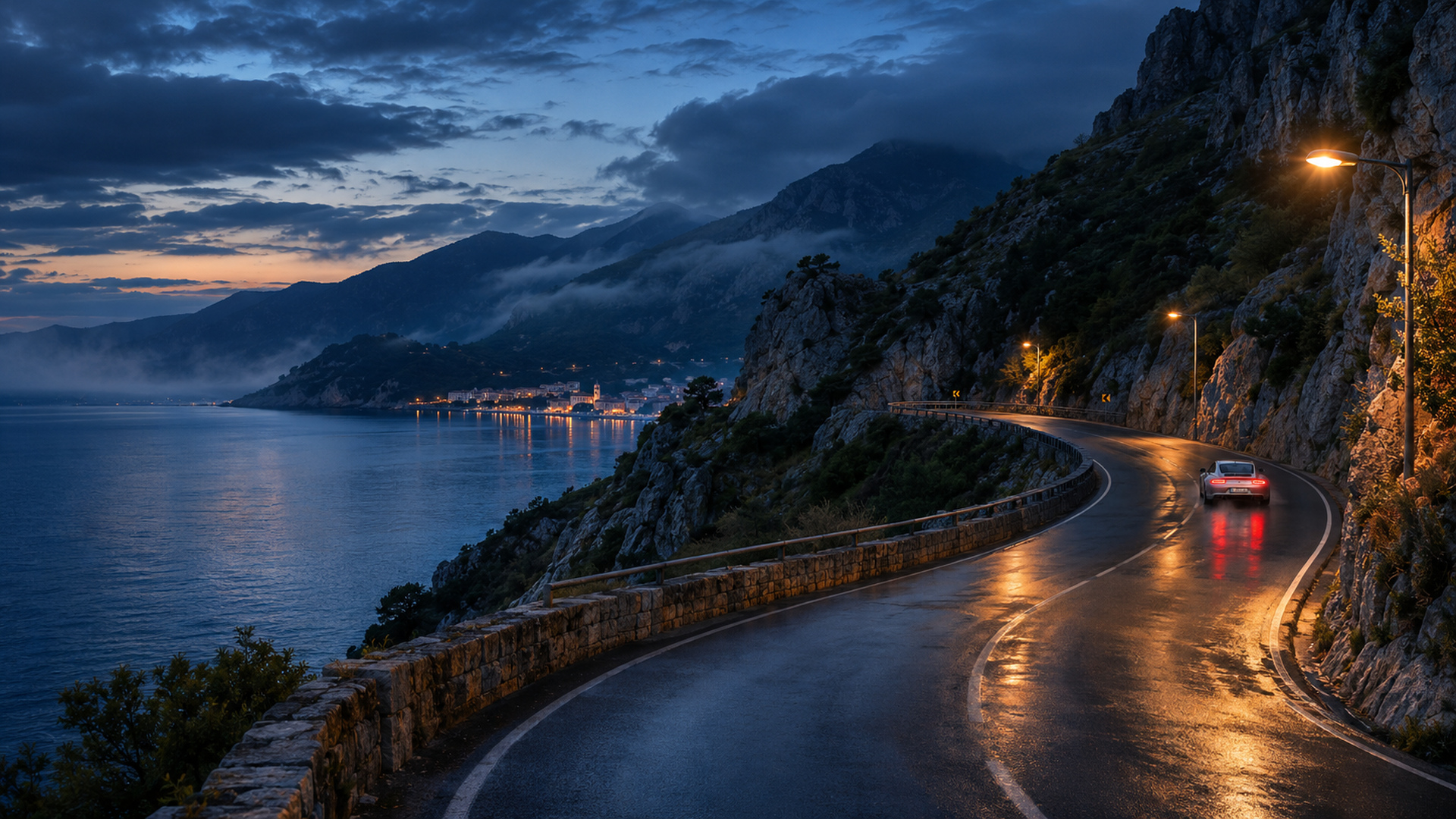
An open highway, the Milky Way, a morning bay and a rainy coast. Four included wallpapers, ready when you are.
Night Drive · City-edge Highway1920 × 1080 · Included wallpaperMilky Way · Alpine Lake1920 × 1080 · Included wallpaperMountain Bay · Morning Light1920 × 1080 · Included wallpaperCoastline · Rainy Curves1920 × 1080 · Included wallpaper
FEATURE PREVIEW
Make the desktop your own
The feature walkthrough below includes v1.0.0 screenshots and illustrations. The current v2.0.0 interface is shown above.
01 / WALLPAPER
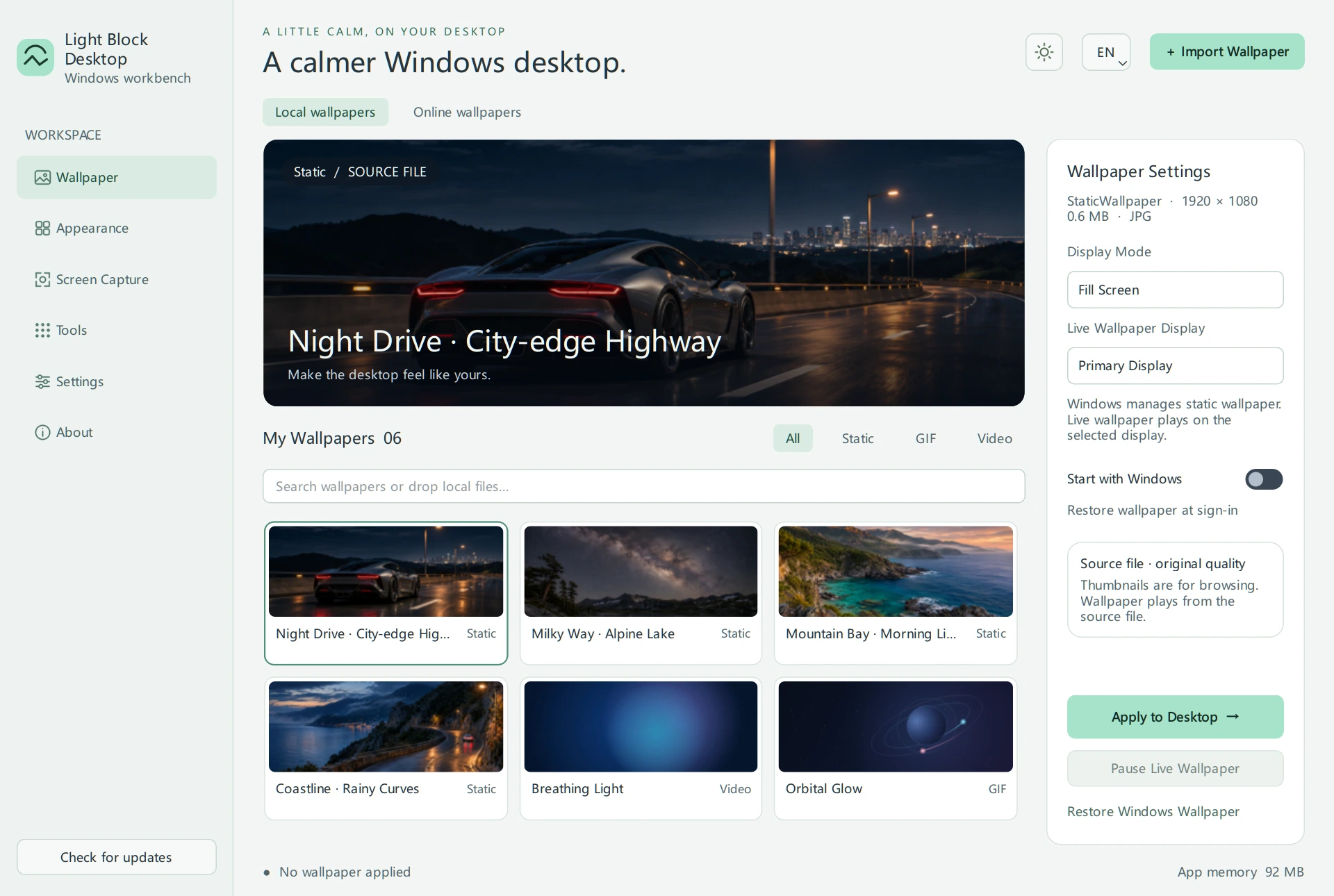
Static, GIF and video wallpapers
Import an image, GIF or video and keep a full-quality copy in your wallpaper library. Pick a display and fit mode, and find videos by their frame-based thumbnails.
Video wallpapers start muted. Toggle sound in Settings or the desktop context menu.
Restore the last wallpaper at sign-in. Pause live wallpaper on full screen, lock, display off or battery power.
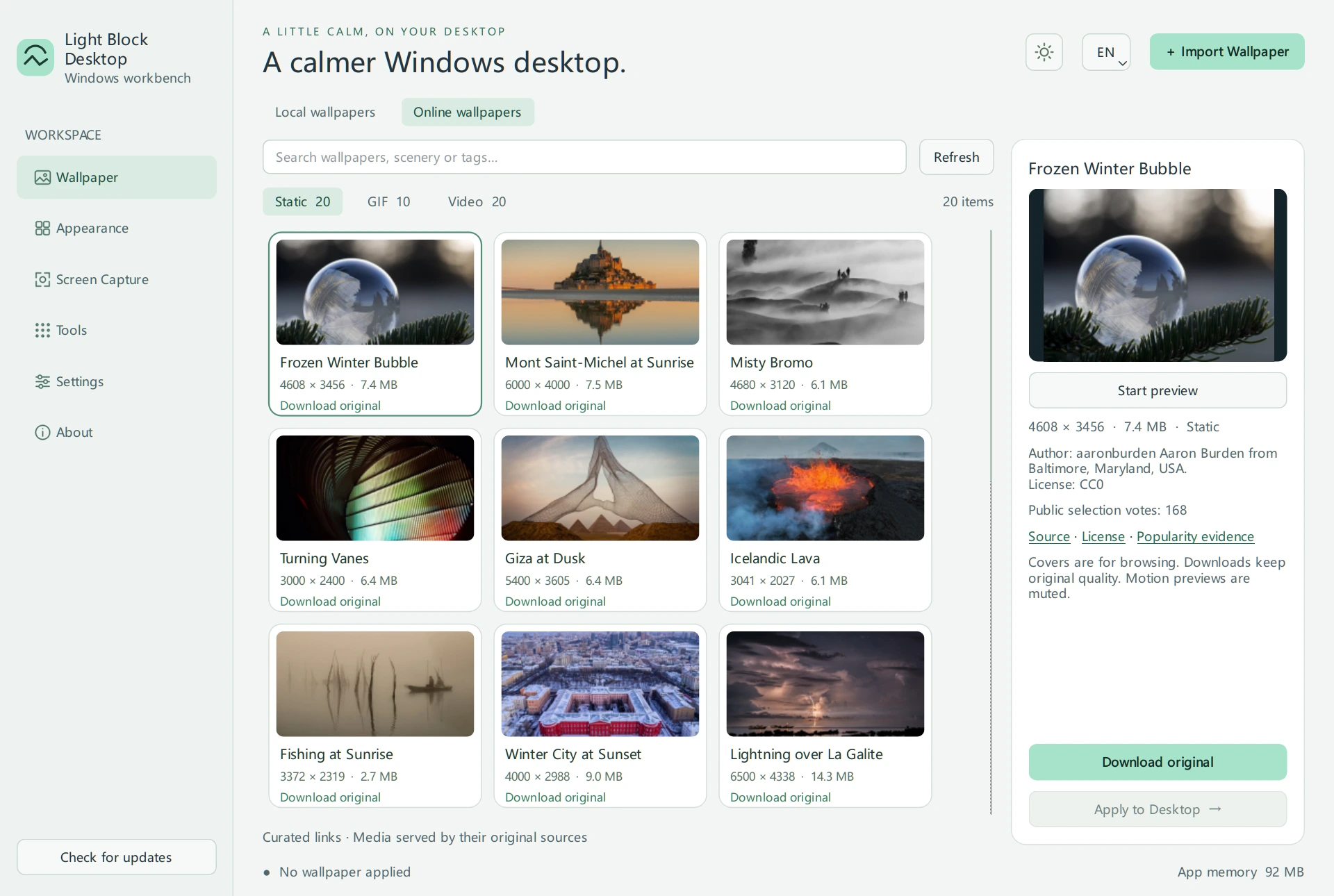
Browse 20 images, 10 GIFs and 20 videos online. Search, preview and download original files with author and license details.
Your local wallpaper libraryOnline gallery · Preview and download on demand
02 / CAPTURE & RECORDING
Annotate screenshots and edit recordings
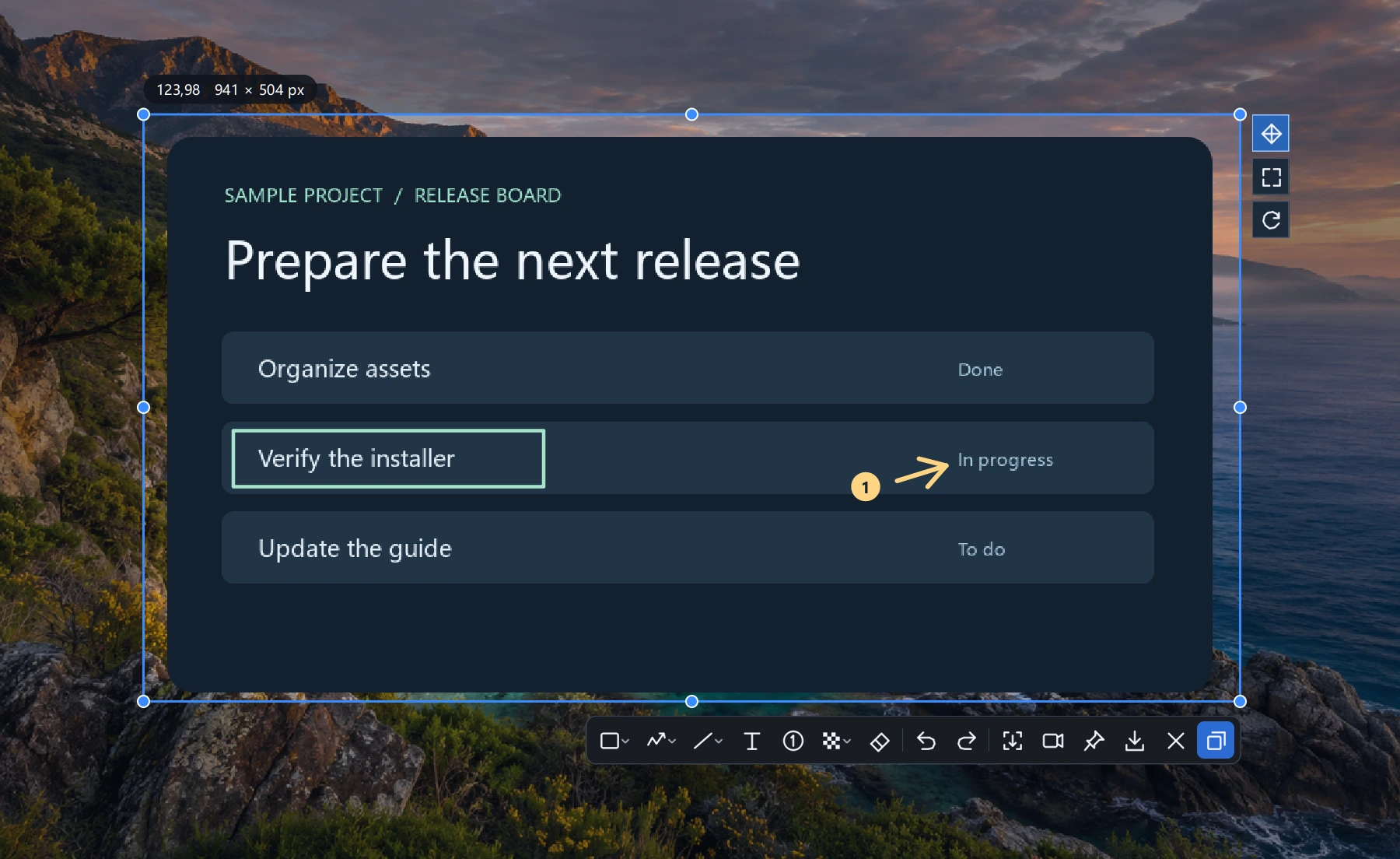
Press Ctrl + Alt + A to pick a window or region. Annotate a screenshot, stitch a scrolling region, copy a PNG or pin the capture in place.
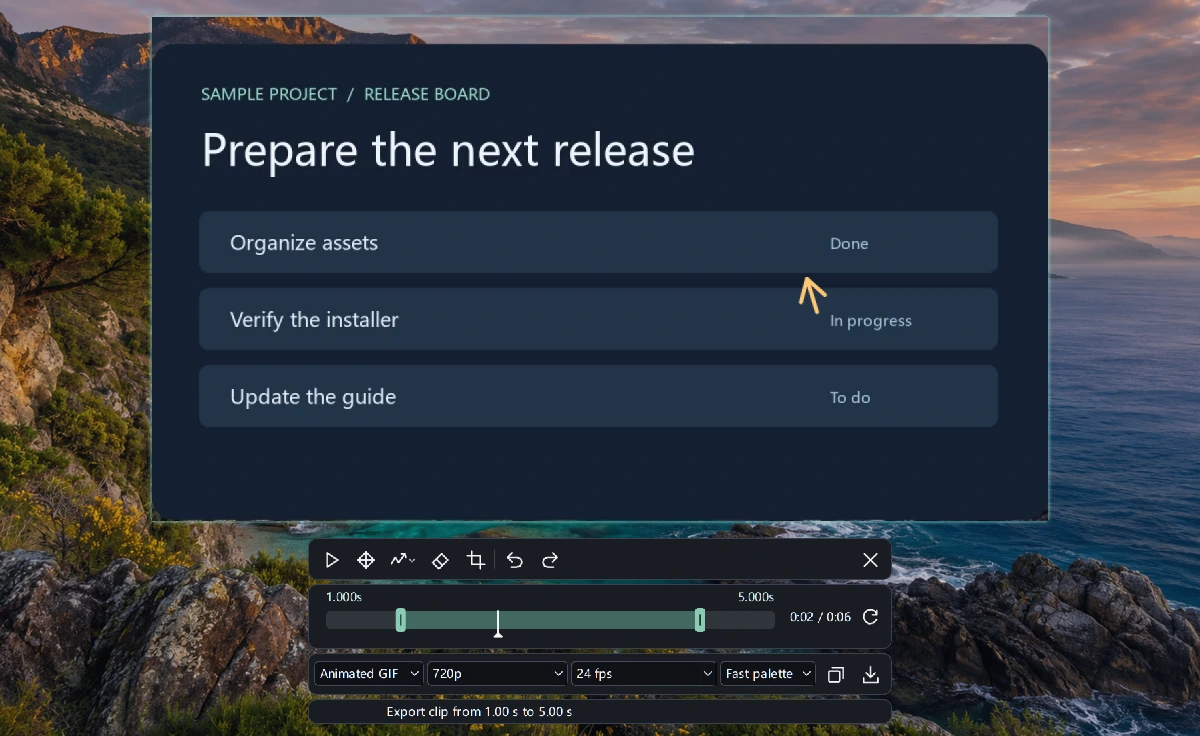
Finished recordings open in a pinned preview. Drag either trim handle and use arrow keys for frame-by-frame precision.
Choose quality and frame rate, then export MP4, GIF or lossless MKV. GIF offers fast and fine palette modes.
Capture selection and annotation toolbarRecording preview, timeline and export controls
03 / ORGANIZER & TASKBAR
Organize the desktop and style the native taskbar
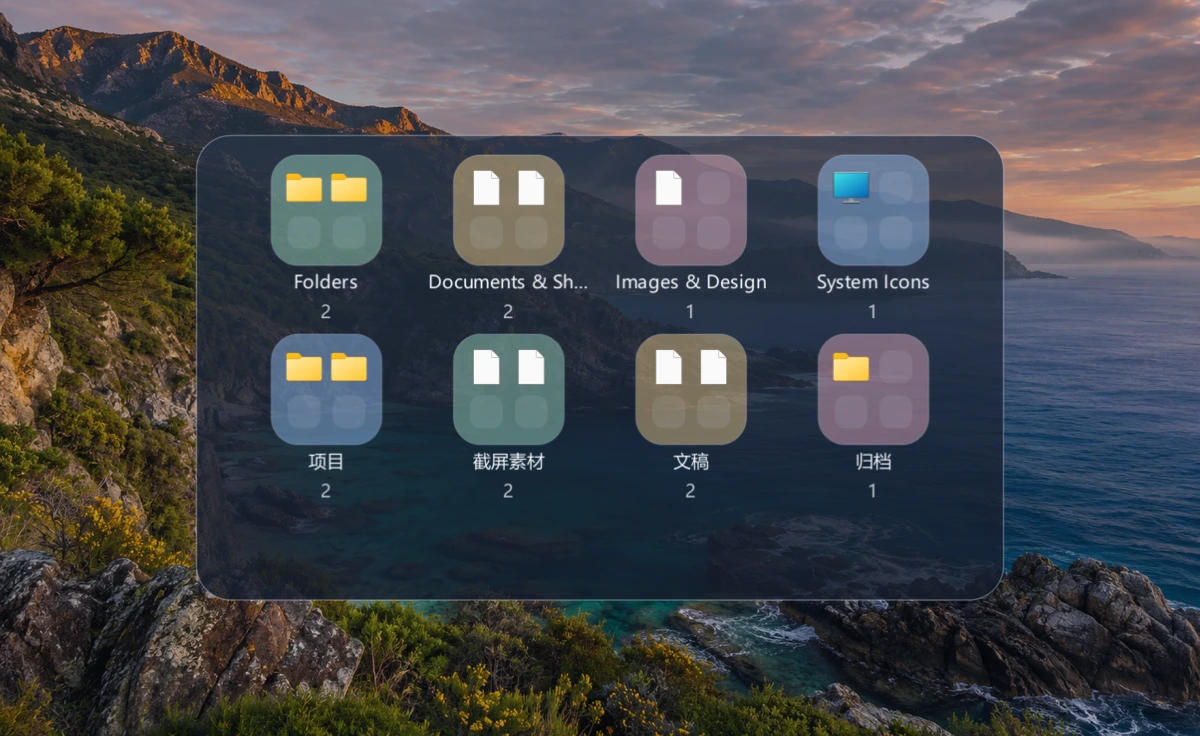
Place the organizer at the top, center or bottom. Sort by name, modification time or group, and search for desktop items. Turning the organizer off restores the original icon visibility.
Optional taskbar styling centers power and search, apps and the system tray on the primary display on Windows 11 22H2 or later, x64. Windows Search and tray menus stay available.
The bar can hide when a full-screen app or window covers it. Move the pointer to the bottom edge to reveal it.
Open Taskbar Settings or Task Manager beside the power button. New desktop files appear as icons first; right-click to put them away or choose a group.
Desktop organizer groupsDiagram of the three-section native taskbar
04 / DESKTOP NOTES
Keep your to-dos on the desktop
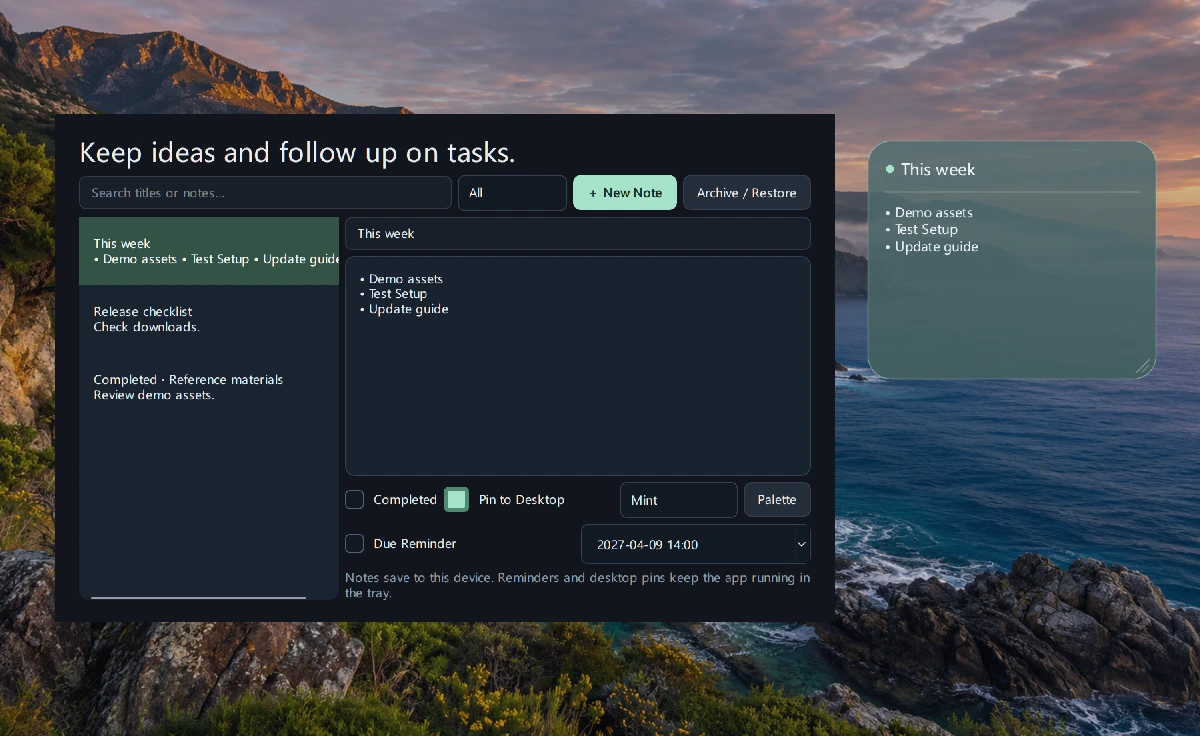
Right-click the desktop background and choose Light Block Desktop · New Note to pin a note. On Windows 11, open Show more options first. Drag the note to move it, or double-click to edit.
Search, set reminders, mark tasks done or archive them in Notes & Tasks.
Resize notes, choose custom colors and scroll long content without scrollbars. Pinned notes stay visible when Settings close.
Notes editor and a pinned desktop note
05 / CURSORS & APPEARANCE
From cursor outlines to desktop colors
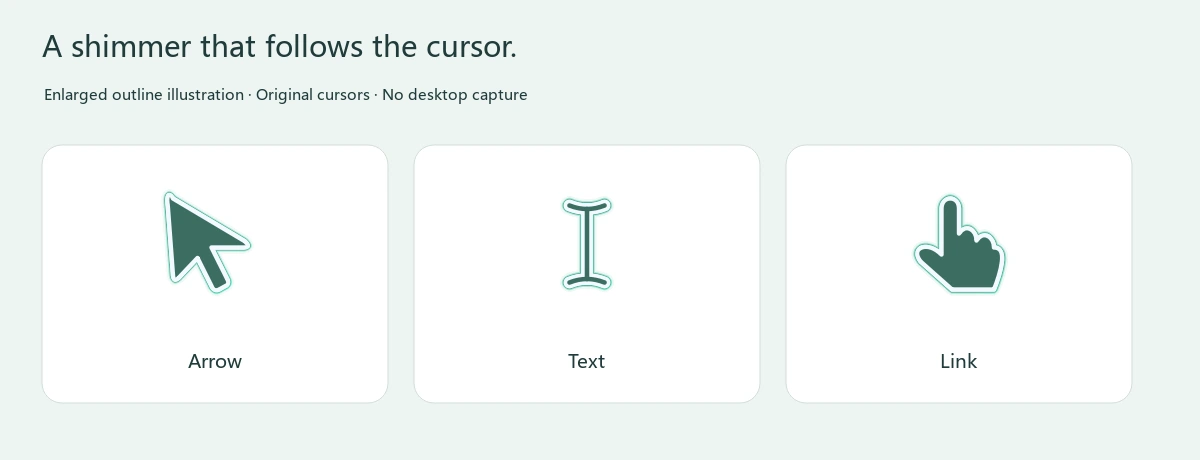
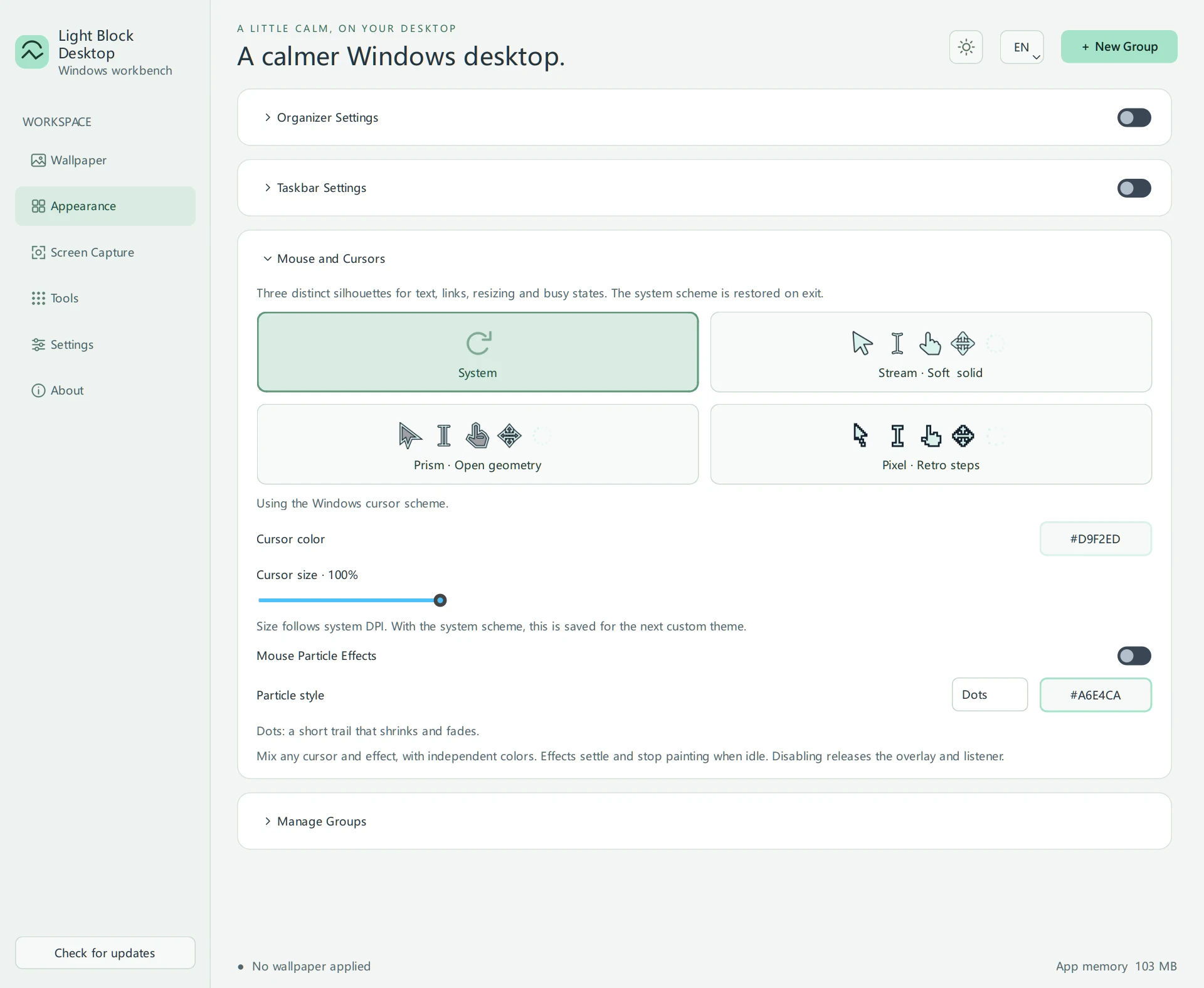
Three original silhouettes—Stream, Prism and Pixel—cover text, links and resizing. Choose your colors and adjust cursor size from 75% to 200%.
Mix independently colored Dots, Falling and Glow effects. Glow follows the current cursor silhouette; Falling uses finer, softer luminous specks.
Effects settle and stop painting when idle. Disabling releases the overlay and listener; quitting restores the system scheme.
Color organizer icon plates, panels and groups separately. The native taskbar offers color, opacity and corner radius controls.
Click Update now in the app sidebar to download with progress. After verifying Setup, the app exits and starts the installer, preserving existing settings. You can also download Setup manually.
How do I start recording?
Starting with v0.7.4, the installer and portable package include the recording component. Press Ctrl+Alt+A, select a region, then click Record on the toolbar. After stopping, preview and export as MP4, GIF, or lossless MKV.
Where is my data stored?
Settings and wallpapers live in the data folder beside the app. The first launch copies your previous settings. A read-only app folder uses %LOCALAPPDATA%\StillWallpaper.
How is the language selected?
The app follows the Windows display language by default. Switch between English and Simplified Chinese in the upper-right corner of Settings. Setup also includes Traditional Chinese.
 Light Block Desktop